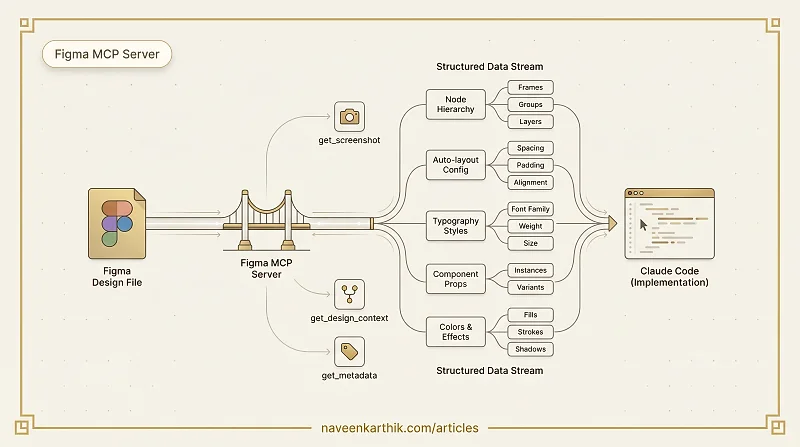
The Figma MCP server gives Claude Code a direct line into your Figma files — not just a screenshot, but the actual design tree: frame hierarchy, auto-layout config, spacing, typography, component relationships. Once it's connected, you can point Claude at any node and ask it to implement the design, and it starts from structured data rather than pixel-guessing from an image.
This guide covers setup, the three main tools the server exposes, and what to expect from each one.
Figma MCP Setup
1. Add the Remote Figma MCP Server
Run the following command in your terminal to add the remote Figma MCP server to Claude Code:
2. Authenticate Figma MCP
- Open Claude Code.
- Type:
- Select the figma server.
- Choose Authenticate.
- Your browser will open and prompt you to authorize Claude to access your Figma account.
- Complete the authorization process.
3. Verify Connection
Run:
The Figma server should now show a green status or a "connected" message.
Optimize Token Utilization
To improve token efficiency across all MCP servers, add the following line to your .bashrc:
Then reload your shell:
Figma MCP Tools
figma.get_screenshot
Purpose: Takes a screenshot of the selected Figma node.
Use Case:
Useful when Claude needs a visual reference for a component or frame — particularly after calling get_design_context, to visually verify what the structural data describes.
figma.get_design_context
Purpose: Extracts structured design metadata from a Figma file or selected node so that Claude can understand the design in a machine-consumable format.
Returns Structured Data Including:
- Node hierarchy (Frames → Groups → Layers)
- Component information (instances, variants)
- Layout constraints
- Auto-layout properties
- Spacing and padding
- Typography styles
- Colors (fills, strokes)
- Effects (shadows, blur)
- Dimensions
- Positioning
- Tokens / styles applied
figma.get_metadata
Purpose: A lightweight introspection call that returns descriptive metadata about a Figma file or node — without returning the full layout tree.
If get_design_context focuses on structural layout and styling, get_metadata focuses on identity and high-level classification.
Answers Questions Like:
- What is this node?
- Is it a component or an instance?
- What page is it on?
- What are its IDs?
- What styles are applied?
- What are the component relationships?
Figma MCP Design Extraction Example
get_screenshot (MCP)
Output:
get_design_context (MCP)
Returned Code (React + Tailwind)
Important: The generated React + Tailwind code must be converted to match your target project's technology stack and styling system. Before using it:
- Analyze the target codebase to identify the tech stack, styling approach, component patterns, and design tokens.
- Convert React syntax to the target framework if needed.
- Transform all Tailwind classes to the project's styling system while preserving the exact visual design.
- Follow existing patterns and conventions — do not install Tailwind as a dependency unless you explicitly want it.
A few things to know about the output: node IDs are added as data-node-id attributes (e.g., data-node-id="1:2"). Images and SVGs are stored as constants pointing to temporary Figma asset URLs that expire after 7 days. After calling get_design_context, always follow up with get_screenshot to visually verify the structure the model is working from.
get_metadata (MCP)
Returned Metadata
get_metadata is a good first call when you want to understand what a node is before committing to a full get_design_context extraction. It's lightweight and tells you enough to decide whether you're looking at the right component. If you're trying to implement the design, always follow up with get_design_context — metadata alone doesn't give the model enough to generate accurate code.
Claude Interpretation from Figma MCP Tool Data

