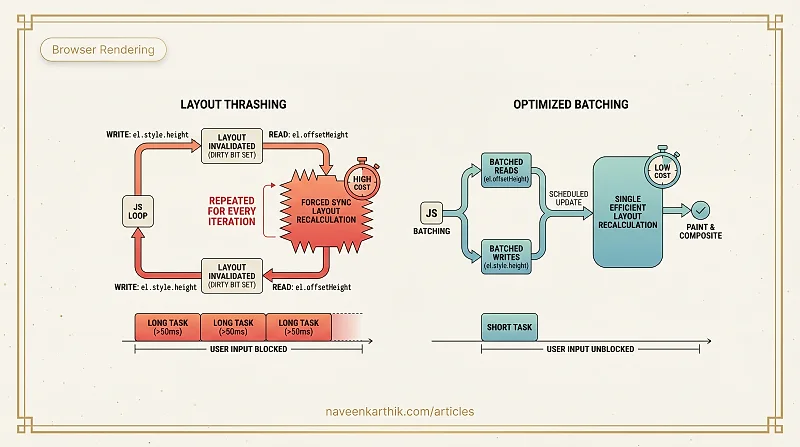
Some of the most impactful performance problems in browser JavaScript aren't caused by network latency or bundle size — they're caused by making the browser repeatedly recalculate layout in a tight loop. This is called layout thrashing, and it can turn a smooth 60fps experience into a stuttering mess even on fast hardware.
Reflow vs Repaint: What's the Difference?
Reflow (also called layout) is the process of calculating the geometry of every element — its position, size, and relationship to other elements. It's expensive because a change to one element can affect the layout of its children, siblings, and ancestors.
Repaint is the process of drawing the visual appearance of elements to the screen — colours, borders, backgrounds, text. Repaint can happen without reflow if only visual properties change.
Reflow always triggers repaint. Repaint does not always trigger reflow.
Operations that trigger reflow:
- Changing
width,height,padding,margin,border - Changing
display,position,float - Adding or removing DOM nodes
- Changing font size or font family
- Changing
classNameon elements affecting layout - Resizing the window
Scoping reflow: CSS containment (contain: layout) and content-visibility: auto limit how far a reflow cascades. If a change inside a contained subtree can't affect anything outside it, the browser skips the rest of the page. See article #5 for the full breakdown.
Operations that trigger repaint only:
- Changing
color,background-color,border-color,outline - Changing
visibility(notdisplay) box-shadow
Operations that trigger neither (compositor-only):
transformopacityfilter(on composited layers)
The "Dirty Bit" — Why Forced Sync Layout Happens
When you write to a layout-affecting DOM property (like el.style.width = '200px'), the browser doesn't immediately recalculate the page's geometry. Instead, it marks layout as dirty and schedules a recalculation for the next frame. This batching is efficient — 50 writes in one frame trigger one layout, not 50.
The problem arises when you read a geometry property (like el.offsetWidth) while layout is dirty. The browser cannot give you a stale answer — your code is asking "how wide is this element right now?" So it must synchronously recalculate layout before returning the value. This is called a forced synchronous layout.
Once you understand this dirty-bit mechanism, the fix becomes obvious: do all your reads first (when layout is clean), then all your writes (which mark it dirty). Never alternate.
What Is Layout Thrashing?
Layout thrashing happens when you read a layout property immediately after writing one inside a loop — forcing the browser to recalculate layout synchronously, over and over.
Each iteration: write invalidates the layout, then the read forces the browser to recalculate it immediately. 100 elements = 100 full layout recalculations.
Batch reads and writes separately instead:
Now layout is recalculated once — after all writes have been batched.
Layout-Triggering Properties
Any time you read one of these properties, if the layout is currently invalid (i.e., something has been written since the last layout), the browser forces a synchronous layout:
offsetTop, offsetLeft, offsetWidth, offsetHeight, offsetParent
scrollTop, scrollLeft, scrollWidth, scrollHeight
clientTop, clientLeft, clientWidth, clientHeight
getComputedStyle()
getBoundingClientRect()
These are legitimate reads — you need them. The problem is reading them immediately after writing to the DOM.
The Main Thread and Long Tasks
The browser's main thread handles JavaScript, style calculation, layout, and paint — all on a single thread. When any task on the main thread takes longer than 50ms, it's classified as a Long Task.
Long tasks block everything else:
- User input (clicks, keypresses) is queued and delayed.
- Animations can't run.
- The page feels frozen.
Layout thrashing is a common cause of long tasks. A loop that performs 100 forced synchronous layouts might take 200ms+ — during which the user's input is entirely blocked.
Chrome DevTools → Performance panel shows long tasks as red-marked blocks in the main thread row. The "Long Tasks" section in Lighthouse also identifies the worst offenders.
Practical Fixes
1. Use requestAnimationFrame for visual updates
Wrap DOM writes in requestAnimationFrame to schedule them just before the next paint — synced to the display's refresh rate (typically 60fps). rAF guarantees your code runs after the browser has finished layout for the current frame, so your writes don't trigger a mid-frame recalculation:
2. Use CSS for animations instead of JavaScript
CSS animations on transform and opacity run on the compositor thread and don't touch layout at all:
3. Use will-change to promote layers
will-change: transform tells the browser to promote an element to its own compositor layer before the animation starts, avoiding the cost of promotion during the animation:
Use sparingly — every promoted layer consumes GPU memory. More importantly, apply it just before the animation and remove it afterwards. Leaving will-change on permanently wastes GPU memory on elements that aren't currently animating:
4. Virtualise long lists
Rendering 10,000 DOM nodes causes massive layout costs. Virtual list libraries (react-window, tanstack-virtual) render only the nodes currently visible in the viewport, keeping the DOM small.
Layout thrashing is insidious because it doesn't show up as slow JavaScript — it shows up as the browser doing extra work that you accidentally caused. Once you get in the habit of separating reads from writes and reaching for transform over geometry properties, a whole class of jank problems simply stops appearing.