You type a URL and hit Enter. A few hundred milliseconds later, a fully styled, interactive page appears. What actually happened in between?
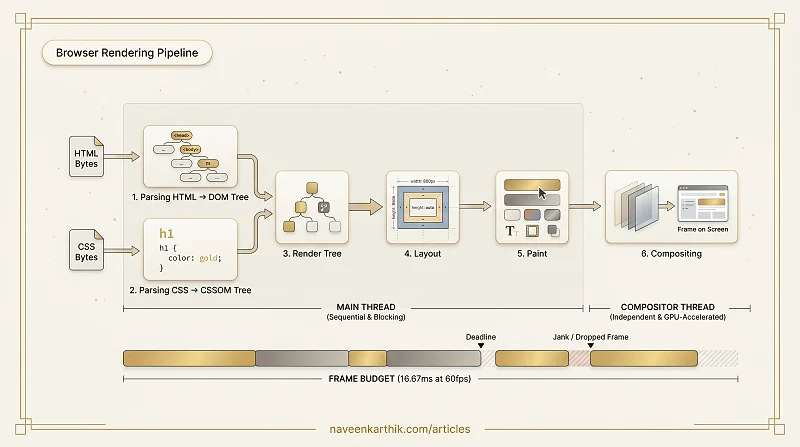
Most performance advice — defer your scripts, inline critical CSS, stick to transform for animations — only makes sense once you understand the pipeline it's targeting. Here are the six steps the browser runs on every frame, in order.
From Bytes to Pixels: The Six Steps
The browser performs six distinct steps to go from raw HTML bytes to pixels on screen. These steps are sequential within a single frame; skipping or short-circuiting any of them is what performance work is actually about.
Step 1: Parsing HTML → DOM
The browser's HTML parser reads the document byte by byte and builds the Document Object Model (DOM) — a tree of nodes representing every element, attribute, and text content on the page. Think of a tree like a family tree: one root element (<html>) with children branching below it (<head>, <body>), each with their own children, and so on.
Parsing is incremental: the browser doesn't wait for the full document before it starts building the DOM. It works through the stream and emits nodes as it goes. This is why placing <script> tags at the bottom of <body> matters — a blocking script encountered mid-parse halts the entire process.
defer vs async: Both download without blocking the parser. defer waits for the full DOM before executing (preserving script order). async executes the moment it finishes downloading, which may interrupt parsing and can cause scripts to run out of order. Use defer when script order matters (most cases); use async for standalone scripts like analytics or ads.
The DOM is not the rendered output. It's a structured representation of the document's content. Styles live elsewhere.
The Preload Scanner
While the main parser builds the DOM, a secondary parser called the preload scanner runs ahead looking for resources — <img>, <link>, <script src> — and dispatches fetch requests early. This is why an image referenced below a blocking <script> still starts downloading before the script runs: the scanner already found it.
The preload scanner is why the pipeline isn't quite as sequential as it first appears. The browser speculatively fetches resources it's likely to need, overlapping network work with parsing. This is also why resource hints like preload and preconnect work — they give the scanner explicit instructions it might otherwise miss.
Step 2: Parsing CSS → CSSOM
Separately, every stylesheet linked or embedded in the document is parsed into the CSS Object Model (CSSOM) — a tree that maps selectors to computed style values.
CSS is render-blocking: the browser will not move past this step until all stylesheets have been downloaded and parsed. The reason is safety — rendering anything without complete style information would produce an unstyled flash of content that would immediately re-render, which is worse than waiting.
The CSSOM is also where specificity, inheritance, and cascade are resolved. By the time this tree is built, every element has a fully computed set of styles.
Critical vs Non-Critical CSS
Not all CSS is equally urgent. Critical CSS is the subset of styles needed to render above-the-fold content — the part the user sees immediately. Everything else is non-critical and can be loaded after the first paint.
Inlining avoids a network round trip entirely — best when the critical CSS is small (under ~14KB). Why 14KB? That's roughly the initial congestion window of TCP — the amount of data the server can send in the very first round trip before waiting for an acknowledgement. If your critical CSS fits in that first window, it arrives with zero extra latency. A separate critical.css file loaded normally is a valid alternative when you'd rather keep styles out of the HTML; it still blocks, but a focused file is downloaded and parsed far faster than one large bundle.
Either way, the non-critical rest loads without blocking via the media="print" trick:
Here's how this works step by step:
- The browser sees a
media="print"stylesheet — it still downloads it (at low priority), but it doesn't block rendering because print styles don't apply to the screen. - Once downloaded,
onloadfires and changesmediatoall— the styles now apply to the screen too. - The
<noscript>fallback ensures the stylesheet still loads if JavaScript is disabled — without JS, theonloadtrick can't fire, so the browser treats it as a regular blocking stylesheet inside<noscript>.
The result: non-critical CSS arrives in the background without holding up the first paint.
Step 3: Combining Them → Render Tree
The browser merges the DOM and CSSOM into the Render Tree — a new tree that contains only the nodes that are actually visible on screen.
Nodes with display: none are excluded entirely — they take up no space and have no visual presence. In contrast, visibility: hidden elements are in the render tree (they occupy space in layout) but are simply not painted. Pseudo-elements like ::before are included even though they're not in the DOM. The render tree is the first structure that truly represents what the user will see.
Step 4: Layout
Given the render tree, the browser now calculates the exact position and size of every element on the page. This step is called layout (or reflow).
Layout takes the render tree and the viewport dimensions and produces a box model for every visible node — its x/y coordinates, width, height, and relationship to its parent.
Layout is expensive. Changing anything that affects geometry — width, height, padding, margin, font size, or document structure — triggers a re-layout of everything downstream. This is why layout thrashing is a serious performance concern: interleaving DOM reads and writes in a loop forces the browser to recalculate layout over and over, wasting precious frame budget.
Step 5: Paint
Layout tells the browser where things go. Paint fills them in — it converts each node's visual properties (colour, border, background, shadow, text) into draw calls.
Modern browsers separate paint into compositing layers. Elements that are promoted to their own compositor layer (via transform, will-change, opacity, or fixed positioning) are painted independently. This is how animations run without triggering full-page repaints.
Step 6: Compositing
The final step takes all the painted layers and composites them into the final image you see on screen, respecting z-index and stacking order. This step runs on the compositor thread, separate from the main thread.
This separation is what makes transform and opacity animations special — they live entirely on the compositor thread and bypass the main thread. A JavaScript-heavy page can be freezing the main thread while a CSS transform animation still runs at 60fps.
The Main Thread vs the Compositor
The main thread handles parsing, JavaScript execution, style calculation, layout, and paint. It is a single thread — everything queues behind everything else.
The compositor thread handles compositing. It also handles scroll and touch input, which is why position: fixed elements and overflow: scroll containers need careful handling to stay off the main thread.
Performance work is largely about keeping the main thread free — deferring non-critical work, avoiding layout-triggering reads inside animation loops, and moving as many operations as possible to the compositor.
Frame Budget
At 60 frames per second, the browser has 16.67ms per frame to run all six steps. At 120fps, that drops to 8.3ms. JavaScript execution, style recalculation, layout, and paint all compete for that budget.
When a frame misses its deadline, the user sees a dropped frame — or "jank". Tools like Chrome DevTools' Performance tab show you exactly which step consumed the budget and where to cut.
Once this pipeline clicks, the reasoning behind most performance advice becomes obvious. Deferring scripts protects parsing (steps 1–2). Inlining critical CSS shortens step 2. Sticking to transform for animations keeps rendering (steps 4–5) out of the equation entirely. The pipeline is the model — everything else is just applying it.
Where to Go Next
- #2 — The Critical Rendering Path — the shortest sequence of steps the browser must complete before it can paint anything. Understanding the CRP is the direct next step after the pipeline.
- #3 — Reflow, Repaint & Layout Thrashing — a deep dive into layout (Step 4) and how to stop wasting frame budget.
- How React Works Inside the Browser Pipeline — where the Virtual DOM, reconciler, and concurrent rendering fit into these six steps. Read this after you've absorbed the pipeline fundamentals.